
NORMA AI · MCP
Connect Norma AI to Claude and ChatGPT in 3 minutes
. Don’t leave your assistant to search for Standards. Copy the address below, paste it into your assistant’s connecting screen; the online Standards catalog is now in your chat.
https://onlinestandart.com/wp-json/os-agent/v1/mcp?key=norma_146f103e7dc4909b223505c98baabc6806864fecIt’s free and doesn’t require a Standard Online account.
Basic information:
What is MCP and why is it important?
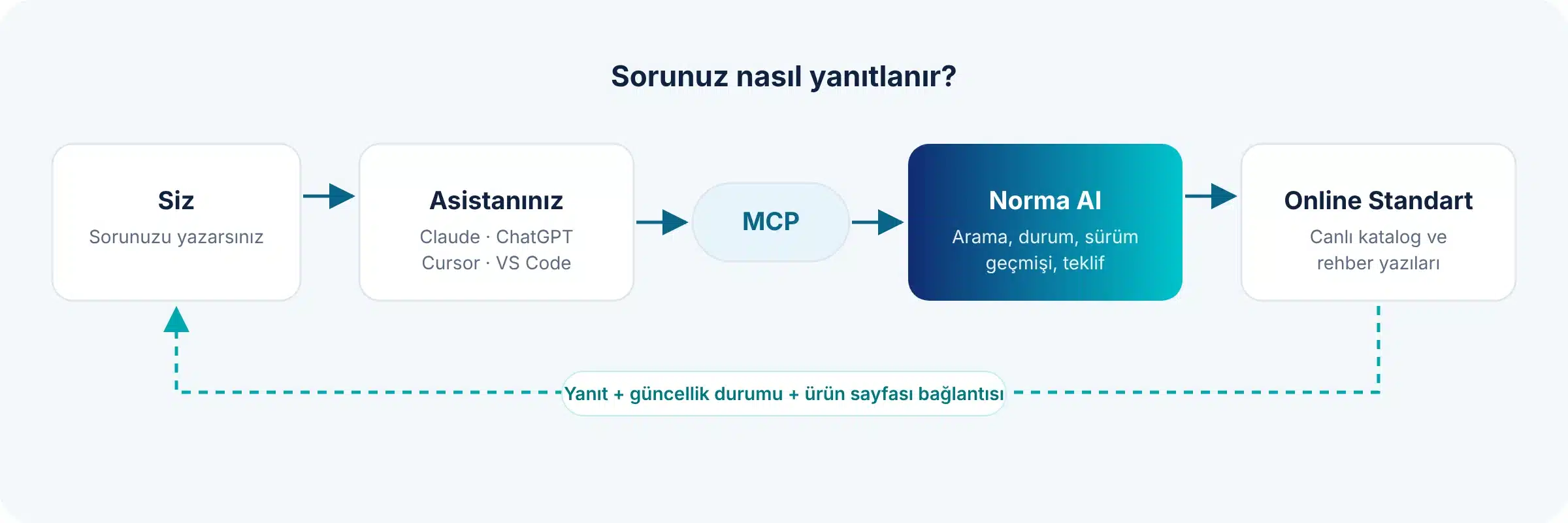
MCP (Model Context Protocol) is an open standard that allows artificial intelligence assistants to connect to external resources. You add a connector to your assistant; from that point on, your assistant can look at the Online Standard catalog while answering your question.
without switching tabs
You don’t exit the chat or copy-paste to check a standard
from the live catalog
Your assistant will provide answers and links to product pages
Whether you use the assistant called
Claude, ChatGPT, Claude Code, Cursor, or VS Code: whichever your team uses.
Installation
Choose your
. You will use the same address for all installations:
https://onlinestandart.com/wp-json/os-agent/v1/mcp?key=norma_146f103e7dc4909b223505c98baabc6806864fec- In Claude, open Customize → Connectors from the left menu.
- Select + (Add) → Add custom connector . In the Name field…
Norma AIType in the address above into the server address field and click Continue . - Confirm and add the authentication settings as they are. Open the connector in a new chat and type your question.
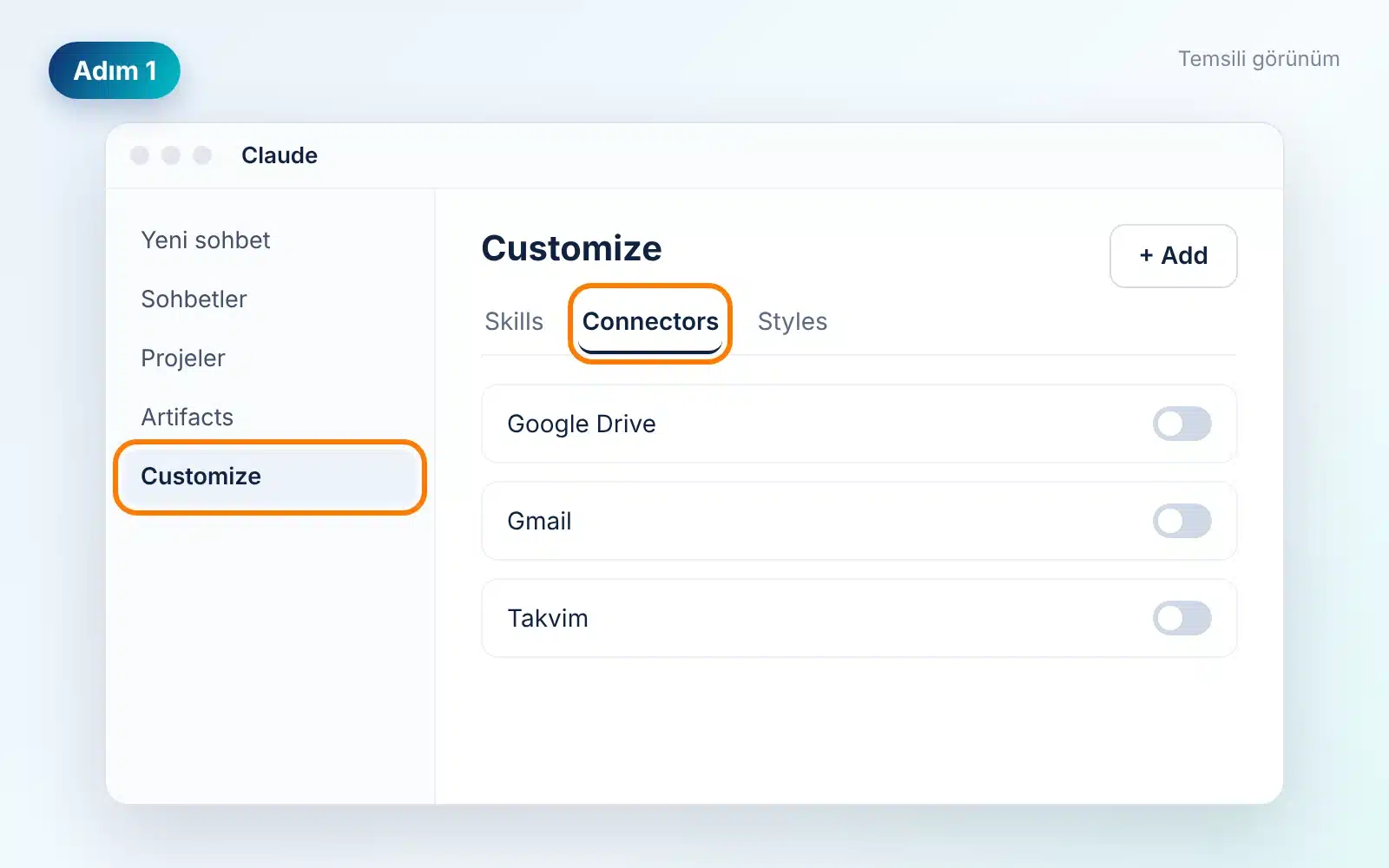
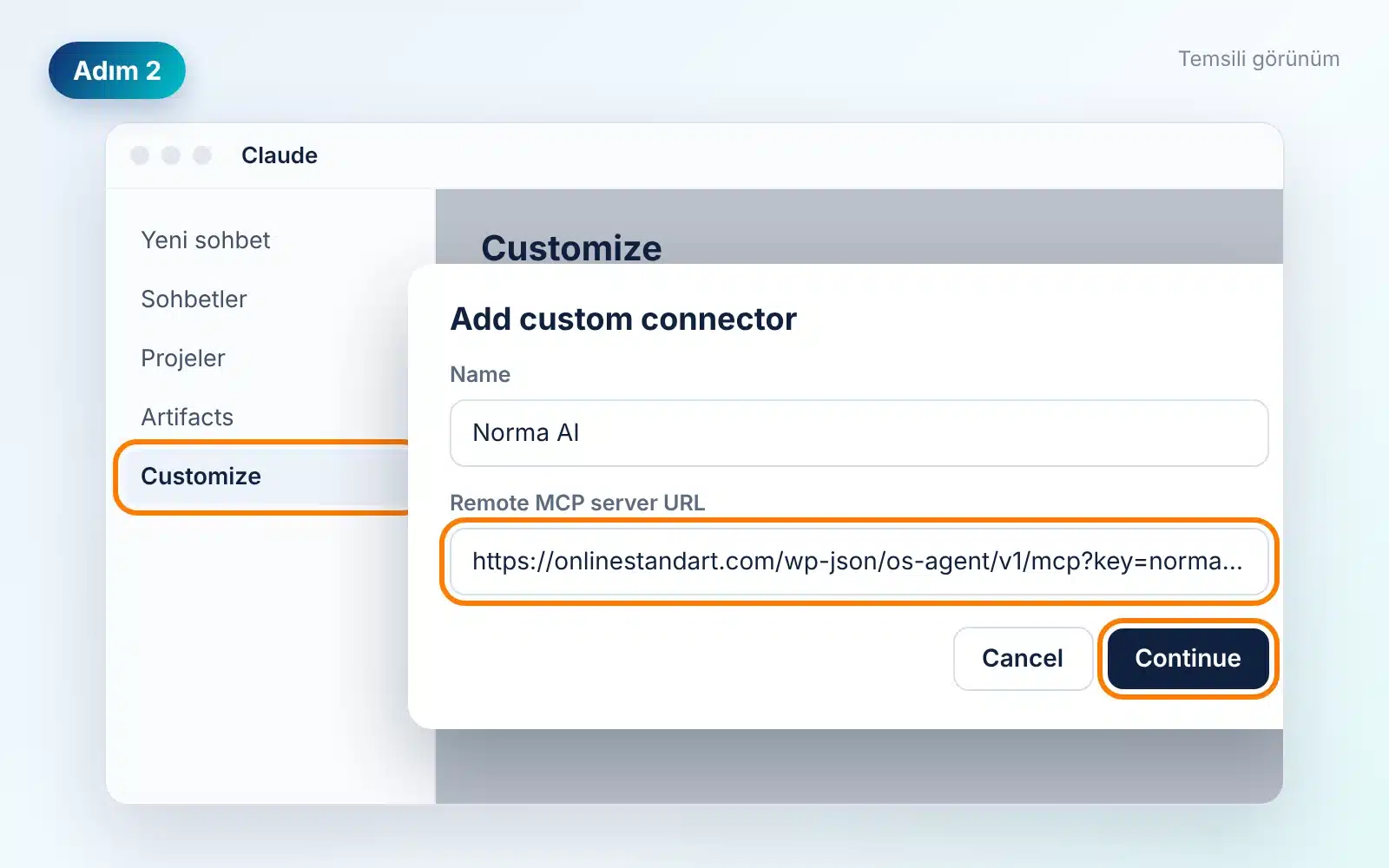
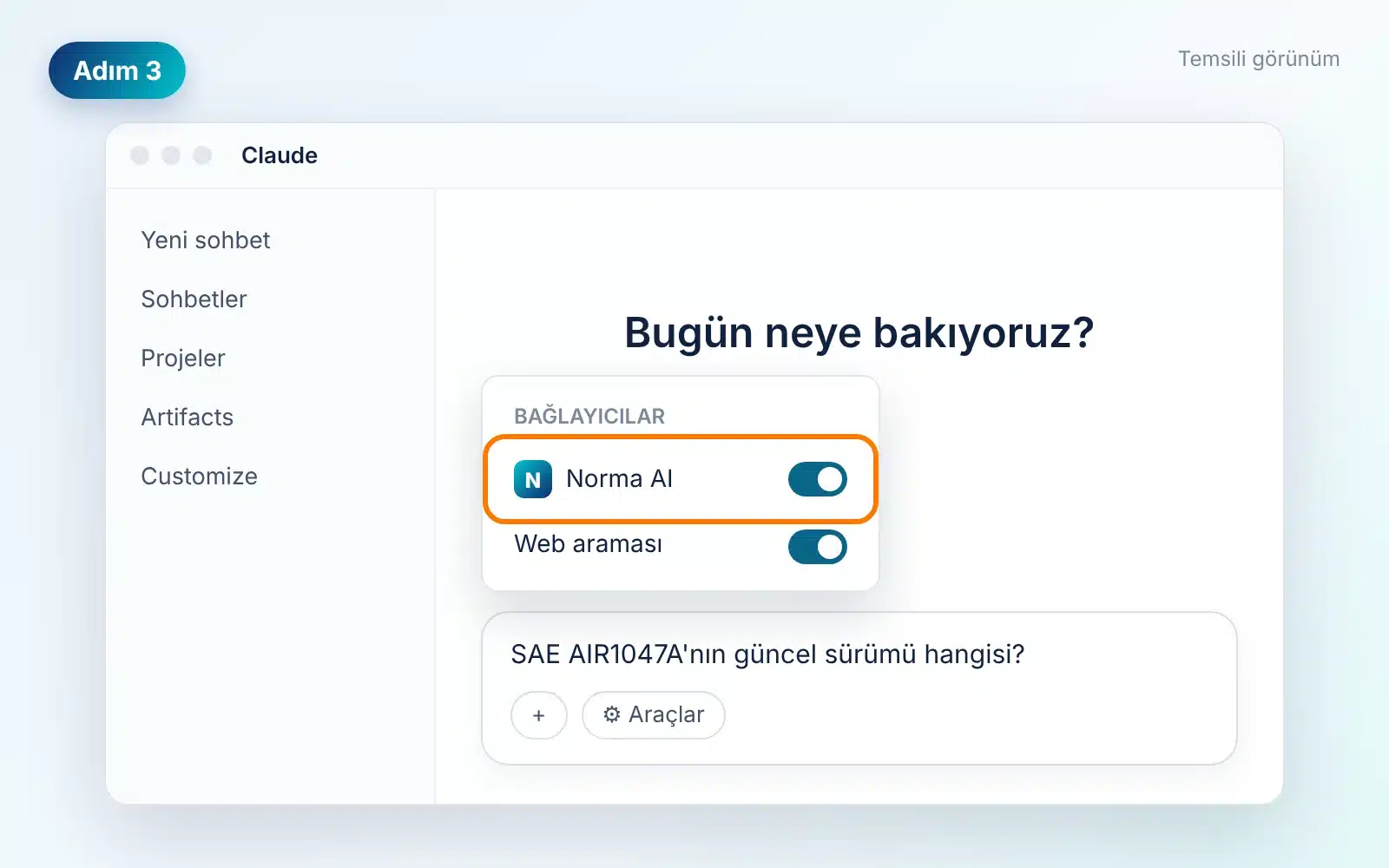
A custom connector can be added in the free plan. If you are using Claude Team or Enterprise, your organization owner adds the connector once via Organization settings → Connectors → Add → Custom → Web ; you then find Norma AI labeled “Custom” in Customize → Connectors and click Connect . The connector you add on the web will also appear in the desktop and mobile applications.
- Open ChatGPT on the web and go to the Plugins section in the left menu. Select Add custom MCP server from the + button in the upper right.
- In the Name field
Norma AIPaste the address above into the Connection field. - On the authentication selection screen, click No authentication . No further information is needed as the access key is contained within the address. Confirm the risk warning and click Create as a plugin .
- Install the plugin. In a new chat…
@Type in, select Norma AI, and then write your question.
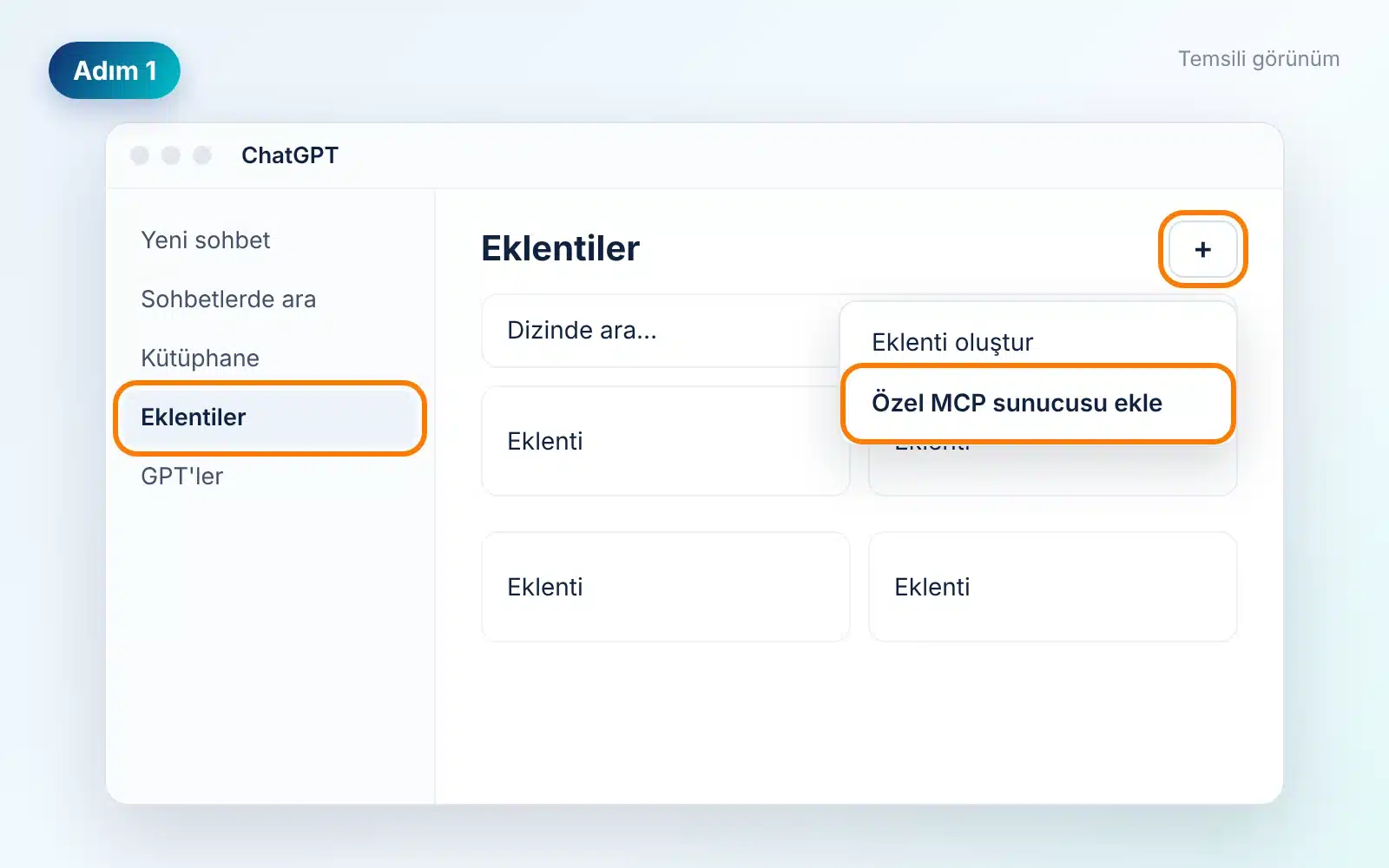
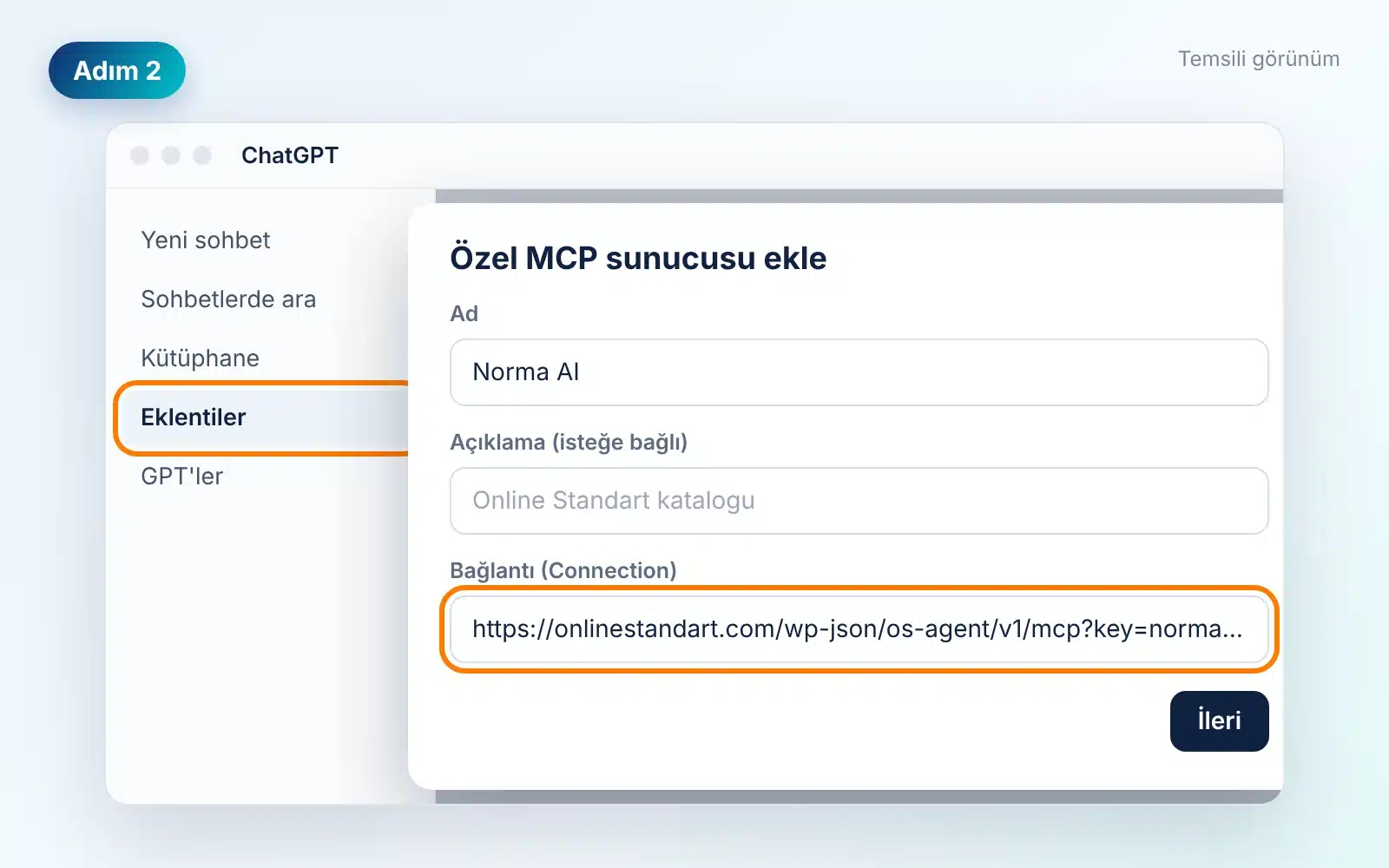
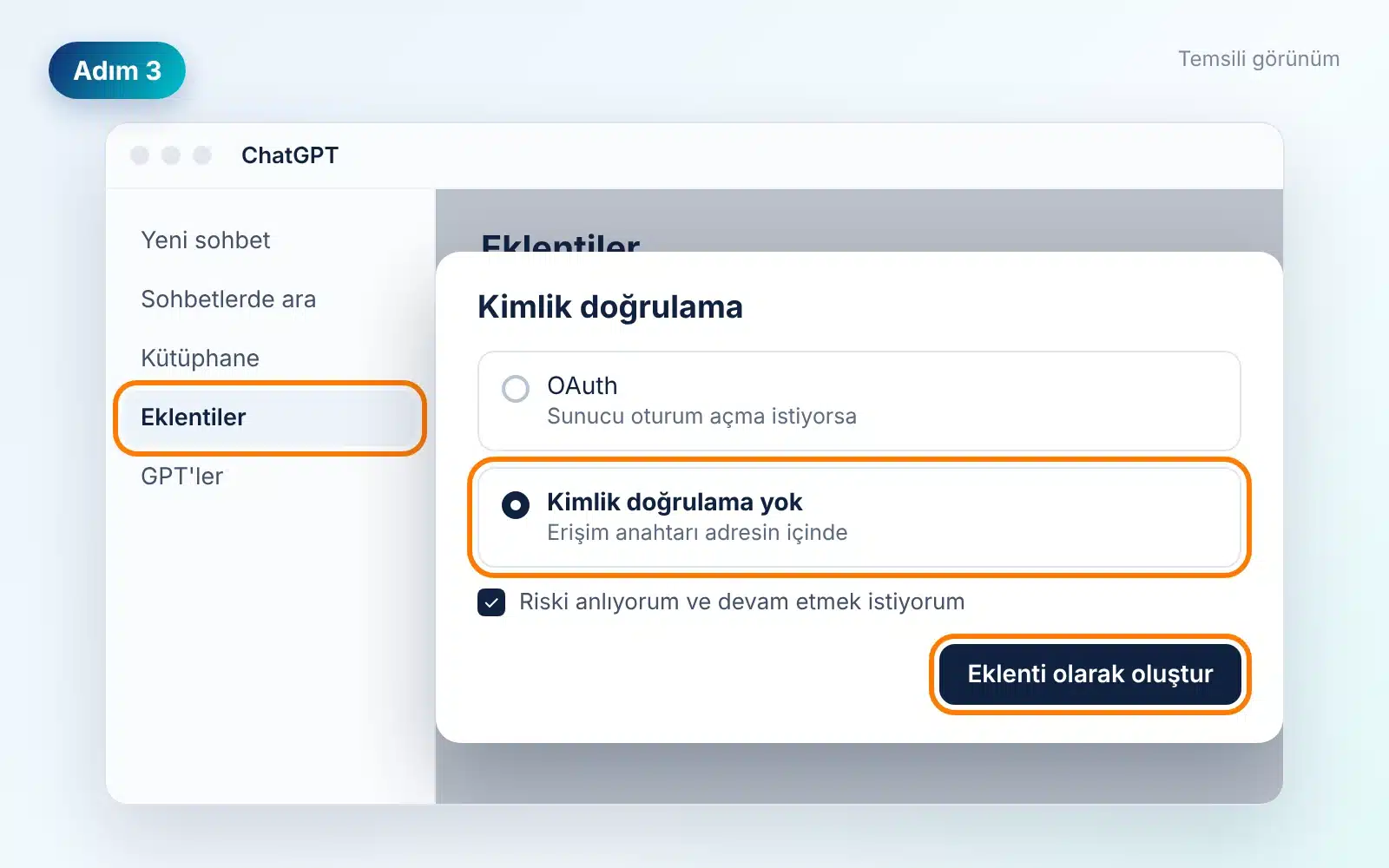
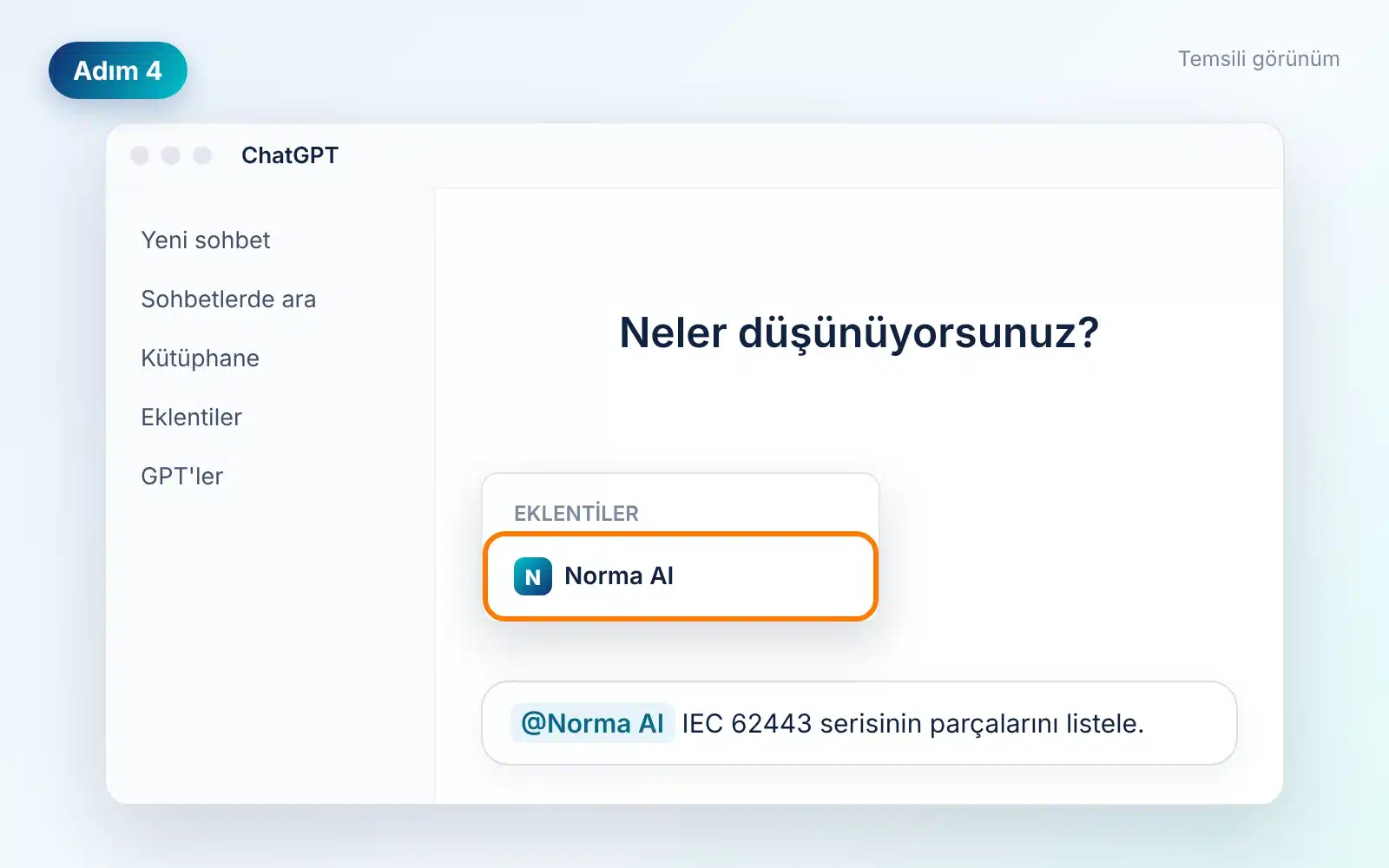
Adding a dedicated MCP server is fully enabled in ChatGPT web’s Business and Enterprise/Edu plans; in Business workspaces, only administrators and owners can do this. If you don’t see this option in the “+” menu, your plan doesn’t allow it. You can use Norma AI on our site .
Run the following command in the terminal:
claude mcp add --transport http norma-ai "https://onlinestandart.com/wp-json/os-agent/v1/mcp?key=norma_146f103e7dc4909b223505c98baabc6806864fec"[Link]claude mcp list You can check it with.
To your application’s MCP configuration file (mcp.json (Please add this:
{
  "mcpServers": {
    "norma-ai": {
      "url": "https://onlinestandart.com/wp-json/os-agent/v1/mcp?key=norma_146f103e7dc4909b223505c98baabc6806864fec"
    }
  }
}
The file location and name vary depending on the application; check your application’s MCP settings. Windsurf and other applications that support a remote (HTTP) MCP server also work with the same address.)
Ready-made questions
. You’re connected. Now what should you ask?
Click on a card, it will be copied to your question board; paste it into your assistant’s contacts.
Capabilities:
What your connected assistant can do
Searches the catalog
by number or subject; resistant to spelling variations.
The product record reader sees
the publisher, publication date, document type, current status, and product page link.
It displays the release history.
All versions in the family, with their dates; the newest is marked.
Lists by organization:
Examples of documents from a publisher’s catalog.
It opens the sector directory
with 17 sectors and the relevant organizations within each.
Our guides include
articles on our site regarding topics such as licensing and version verification.
Ask Norma AI.
Submit the question directly to Norma AI; the site rules apply exactly as they are.
We will send a request for quotation
with your approval and your contact information.
Trust and boundaries.
What you need to know:
Use Norma AI knowing how it works. The rules are the same as for the chat on the site.
Troubleshooting:
Did something go wrong?
| are the symptoms | ? What should I do? |
|---|---|
| The “Add a custom MCP server” option is not visible in ChatGPT | . Your plan or workspace does not allow it. Ask your administrator or use Norma AI on the site. |
| Claude added the connector, but the tools are missing from the chat. | Open Norma AI from the tools menu in the chat window; start a new chat. |
| “Could not connect” or “Unauthorized” error | . The address is complete.?key= Make sure you copy it along with the rest of the text. |
| Error after too many requests: | The hourly usage limit may have been reached; please try again later. |
| The assistant mentioned a number not in the catalog. | Check if the connector is open in that chat and let us know . |
Norma AI MCP – Frequently Asked Questions
Need help for your organization?
Talk to our expert about setup, enterprise licensing, or bulk offers for your entire team.
Online Standard is an authorized reseller of international standards. The copyrights and trademarks of the standards belong to the publishing organizations; we only provide licensed copies. Claude, ChatGPT, Cursor, and VS Code are trademarks of their respective owners; Online Standard is not affiliated with these companies.